 Tsudoi
Tsudoi user guide
Start with a background, arrange your text, then turn a recipient list into personalized invitations. This illustrated guide takes you through design, preview, export, and reuse.
Open editor1. Prepare a background and find your way around
Prepare an image with your design: an event background, wedding invitation, or certificate. Choose Upload invitation background to load it. The canvas uses the original image dimensions. On a phone in portrait orientation, the canvas stays above a separately scrolling settings panel.
The random illustration shown on first launch is a placeholder. Upload your own background before exporting. Safe padding provides snapping guides; it does not crop the image or add a visible border to the output.
2. Add text and arrange the layout
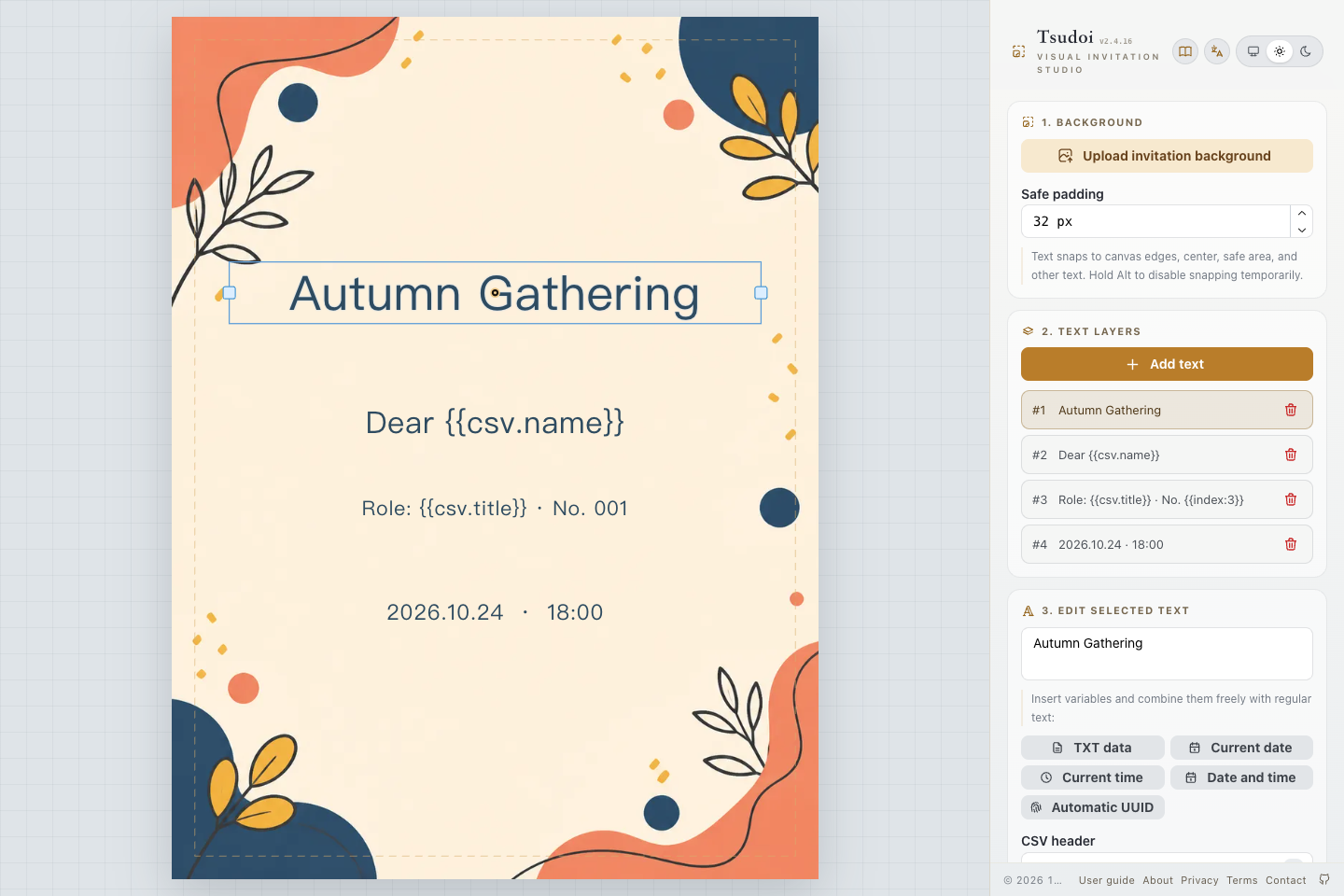
Choose Add text to create a text layer. Select and drag it on the canvas, or select it from the layer list. The text field accepts multiple lines, plain text, and variables. Use separate layers for a heading, greeting, and location so you can position each independently.
- Style: adjust font, size, weight, color, letter spacing, and outline. Chinese, English, Japanese, and Korean fonts are available; unavailable web fonts fall back to system fonts.
- Width: “Fit content” expands with the text; a fixed width wraps lines automatically. Drag the round blue handle to set a width. Double-click the square fixed-width handle to fit content again.
- Alignment and anchor: alignment positions text inside its box. The nine anchor positions determine which point of the box stays fixed at its coordinate. A bottom-right anchor lets longer text expand up and to the left.
- Snapping: text snaps to canvas edges, centers, safe areas, and other layers. Hold Alt to disable snapping temporarily.
3. Personalize your text with variables
For one image, simply type your final text. To create a different version for each recipient, include data variables. Insert them using the variable controls or type them directly.
Dear {{csv.name}}
Role: {{csv.title}}
Number: {{index:3}}
This reads the name and title CSV columns and adds a sequence starting at 001. Do not mix TXT and CSV data variables in one template. Either format can be combined with dynamic dates, sequence numbers, and UUIDs.
| Variable | Purpose |
|---|---|
{{txt}} | Current TXT line; one image per non-empty line |
{{csv.name}} | Current value of a CSV column; replace name with your header |
{{date}} | Local date, for example 2026-10-09 |
{{time}} | Local time in HH:mm:ss format |
{{datetime}} | Local date and time |
{{index}} | Sequence starting at 1 |
{{index:3}} | Zero-padded sequence, such as 001; supports 1–12 digits |
{{uuid}} | Unique per image and text layer; repeated uses in one layer share a value |
Spaces are allowed around names and colons, for example {{ index : 3 }}. The date is the generation date, not your event date. Type a fixed event date as plain text.
4. Import a list and check each version
TXT works well for names or complete lines. Enter Dear {{txt}} in a layer, then import a TXT file under “Batch data”. Each non-empty line produces one image.
Lin Xiao
Alex Morgan
Aoi Sato
CSV is useful for multiple fields such as name, role, and seat. Its first row must contain headers for every referenced column. Match each header exactly to the variable; Unicode headers such as {{csv.姓名}} are supported. Start with “Download examples” in the editor and save your edited file as UTF-8.
name,title,code
Lin Xiao,Guest,A-001
Alex Morgan,Speaker,A-002
Aoi Sato,Guest,A-003
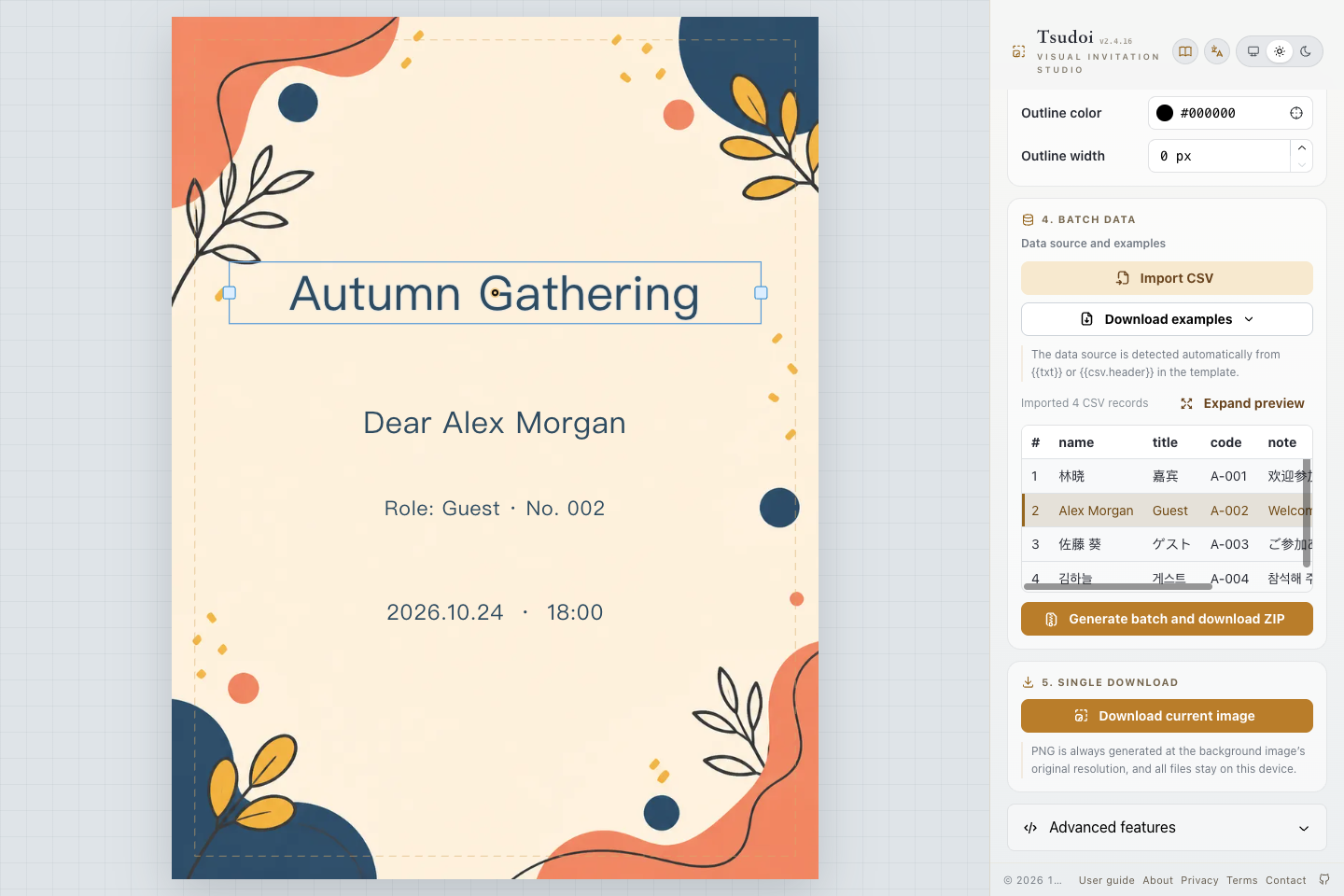
The editor detects the import format from your variables. Without a data variable, import is disabled. After import, the first record is shown automatically. Click a table row or activate it with the keyboard to preview another record. Use “Expand preview” for longer lists. Check the longest names for wrapping and overflow.
Changing plain text or styling preserves the imported data. After changing data variables, check the import status: a field missing from the original CSV, or switching between TXT and CSV, requires a new import. Each batch supports up to 200 records.
5. Download one PNG or a batch ZIP
Download current image exports the currently previewed record as an original-resolution PNG. A scaled-down preview on screen does not reduce the exported resolution.
Generate batch and download ZIP renders every imported record and packages the PNG files locally. Batch numbering starts at 1, and date/time values use one reference time for the batch. Download one image first to check fonts and layout, then generate the full set. Keep the page open until the ZIP downloads; unzip it to inspect the results.
Larger backgrounds and longer lists require more time and memory. If generation struggles, reduce the background dimensions or split the list into smaller batches.
6. Save a template for next time
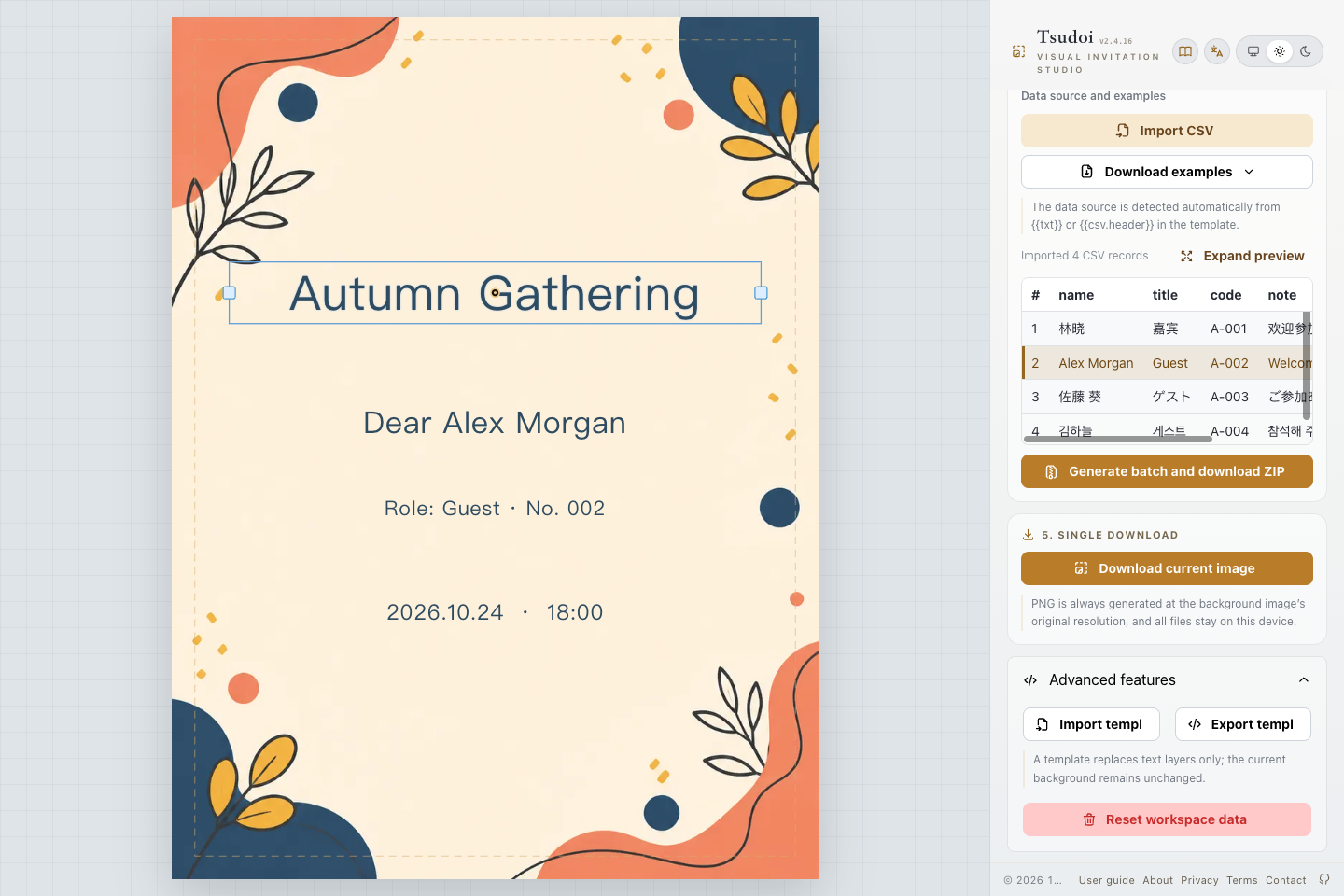
Open Advanced features and choose “Export template” to save a JSON file. It contains text, variables, styles, widths, coordinates, anchors, and safe padding. It does not include the background or recipient list. Keep those files separately when moving to another device. A template can still contain private text you typed, so check it before sharing.
Next time, upload a background and import the template. Confirming the import replaces the current text layers and safe padding and clears the imported list, while keeping the current background. Import your list again to continue.
The latest workspace is saved automatically in this browser and can be restored after refreshing or reopening. This is not a substitute for a backup: clearing site data may remove it. “Reset workspace data” clears local editing data after confirmation; save any files you need first.
7. Common questions and current limits
- Why is export or import unavailable?
- Export requires a real uploaded background. Import requires a TXT or CSV data variable, without mixing both types. Date or sequence variables alone do not enable list import.
- Why do variables still appear literally?
- Data variables stay visible before import. After importing, check that CSV headers match the variables and the imported data is still valid.
- Why does the font look different?
- Web fonts use Google Fonts and fall back to system fonts when offline or unavailable. Export waits for the required fonts to load; inspect the downloaded PNG before distributing it.
- Are my materials uploaded?
- Backgrounds, templates, lists, and results are processed locally; the latest workspace is stored in this browser. Static assets are served by Cloudflare, and web fonts may contact Google Fonts. See the privacy policy.
- Are undo, layer reordering, and huge batches supported?
- Undo/redo, layer reordering, and a preset template library are not currently available. Each batch is limited to 200 records. Core editing and export work offline after the first load and caching; new web fonts still require a connection.